ITTG is a school timetable editor + CP-SAT solver. This page walks through every visible feature: where to click, and what it solves for you.
HEADER 📂 Open / Download / Upload… · 💾 Save · Save As…

- Access
- Top header. Open / Download / Upload…, Save, Save As…. The most-recently-edited file auto-opens on every page load.
- Good for
- All file movement happens through one dialog. Open / Download / Upload… shows a searchable, recency-sorted list of every JSON on the server with size + "X min/h/d ago" timestamps; the currently-open file is highlighted. From there: click a row → Open to load it, click the row's ⬇ button to download that exact file to disk, or click ⬆ Upload in the dialog toolbar to push a local .json file onto the server. Save persists the current editor state to the open file. Save As… prompts for a new filename (default: current name + " - copy") so you can branch without overwriting the original.
HEADER 🗓 Days & Hours
- Access
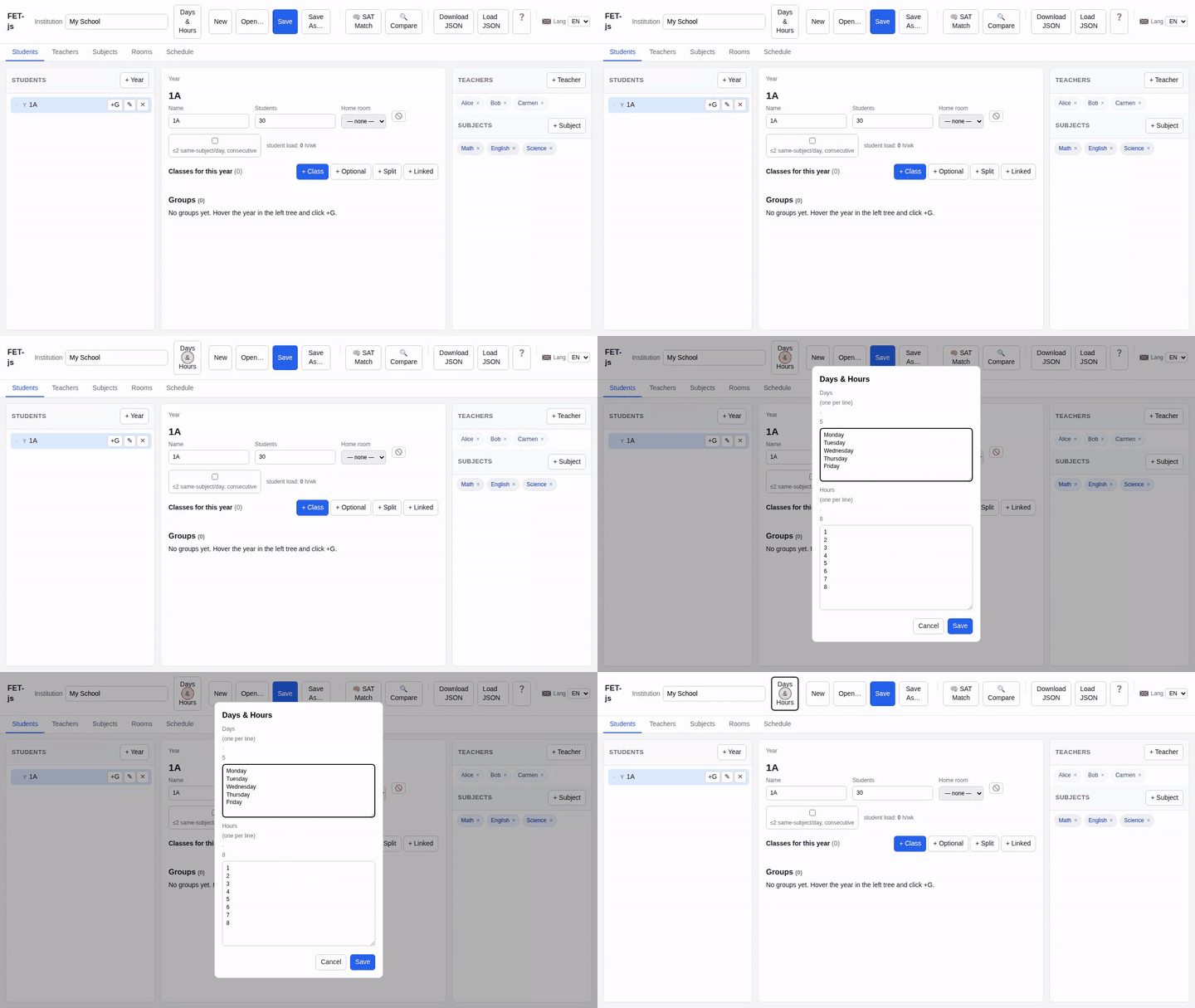
- Header → Days & Hours.
- Good for
- Defines the timetable grid (days of the week + periods per day). Every other view sizes off these two lists, so adding or removing a day instantly reshapes class/teacher/room grids.
TABS Years · Teachers · Subjects · Rooms · Schedule

- Access
- Five tabs immediately under the header.
- Good for
- Years: drill the year → group → subgroup tree, edit activities. Teachers: searchable flat list. Subjects: room rules & lastOfDay flags. Rooms: capacity & allowed-subject lists. Schedule: pick a saved run and view/export it.
YEARS TAB Cohorts & activities


- Access
- Years tab → click a node in the tree on the left. Use + Year, + Group, + Subgroup to grow the tree.
- Good for
- Each cohort has its own activity list. A group inherits everything from its year (year-level activities show as read-only "Inherited" rows below the group's own).
ACTIVITY + Class (single activity)

A real activity row from year 8.a (subject · teachers · ×/wk · 🏠 home room · 🕐 pin · ↗ move).

- Access
- Cohort editor → + Class.
- Good for
- A single weekly subject the whole cohort takes together. Pick subject, set
×/wk(lessons per week), pick teachers, optionally pin to specific slots.
ACTIVITY + Optional
- Access
- Cohort editor → + Optional.
- Good for
- An elective that only a subset of students attends. Doesn't count against the cohort's weekly-hours minimum, and multiple optionals may share the same slot (students pick one).
ACTIVITY + Split & "Parallel sets"
- Access
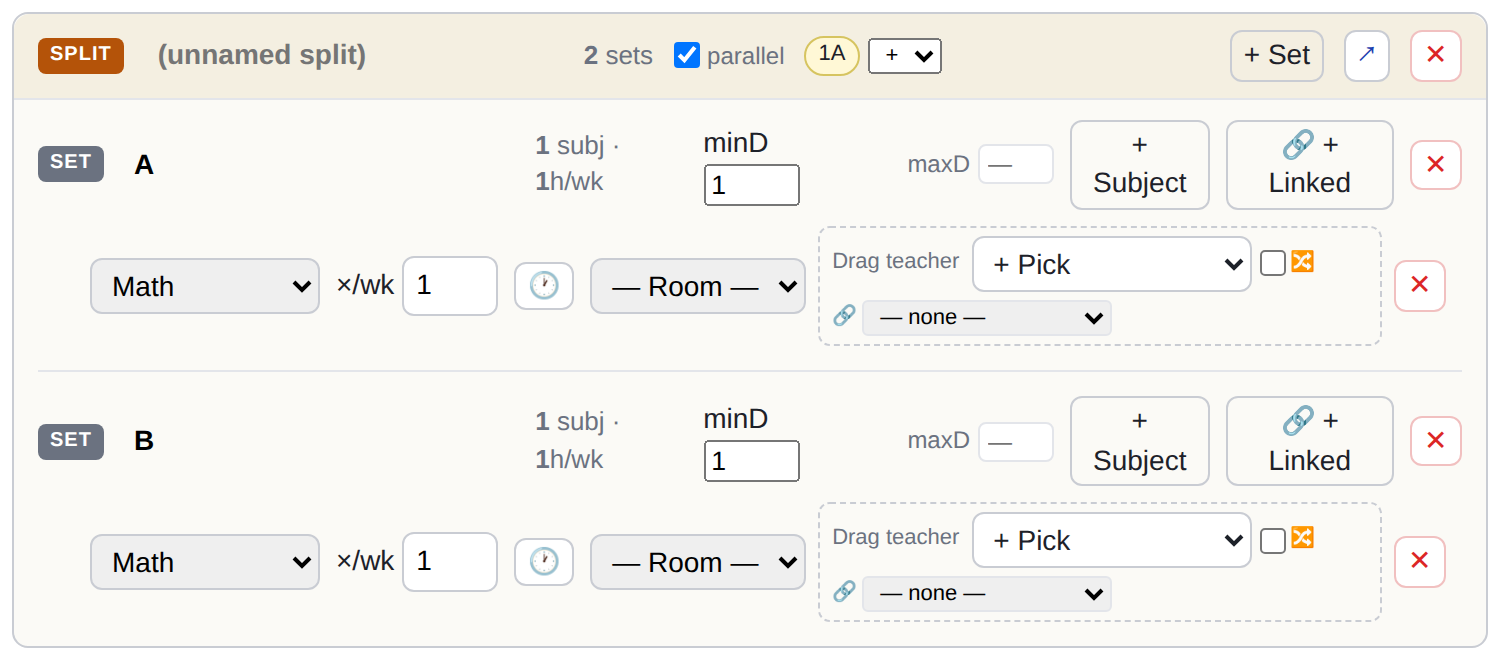
- Cohort editor → + Split. Inside, add sets/lanes; toggle parallel.
- Good for
- Block where the cohort divides into parallel groups. Parallel ON (default): every lane runs in the same time slot (e.g. I. idegen nyelv, where the whole class picks one language and all lessons happen together). Parallel OFF: lanes scheduled independently — useful for optional tagozat blocks.
ACTIVITY + Linked (cohort-level link)
- Access
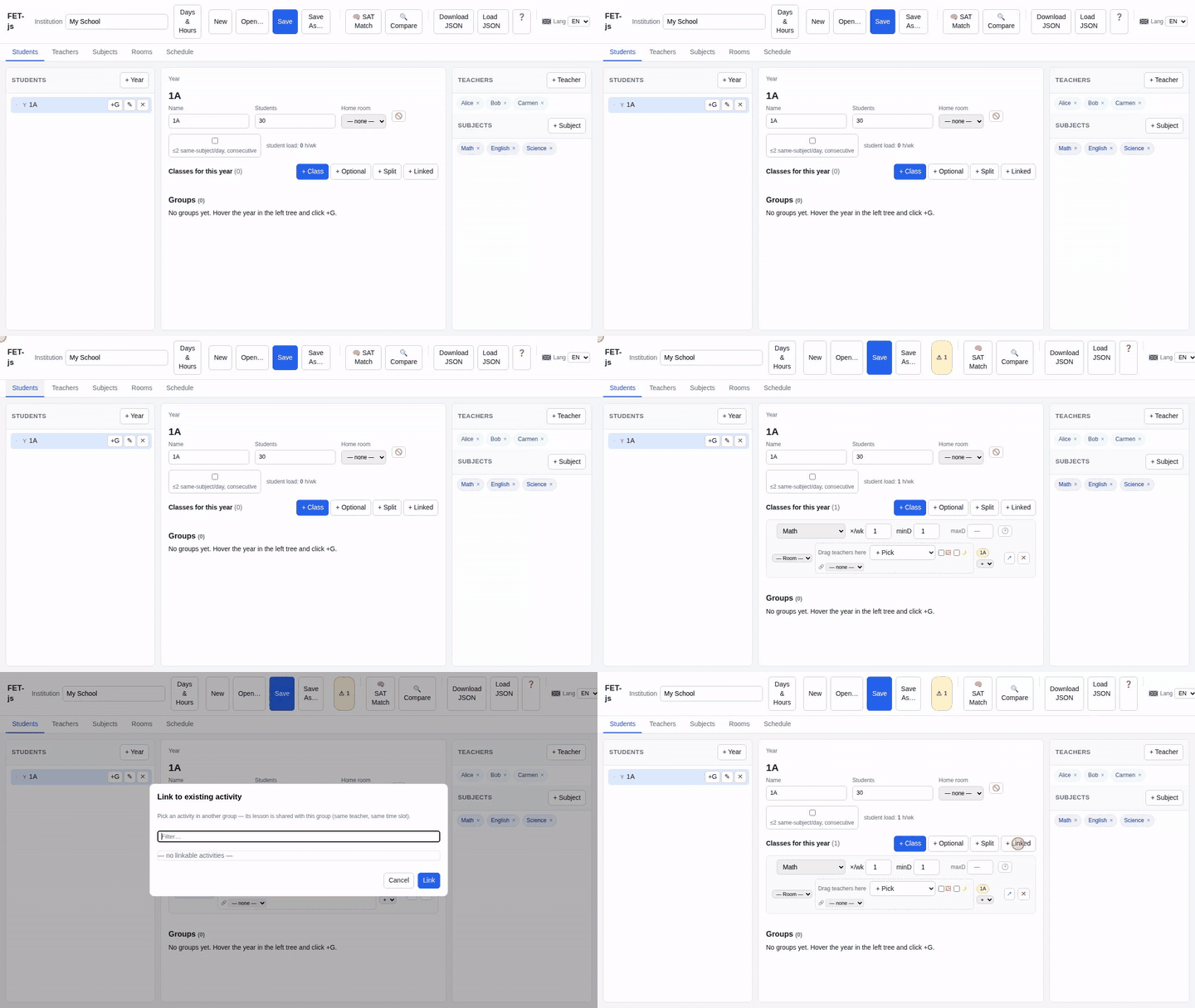
- Cohort editor → + Linked. Pick a target lesson from another cohort.
- Good for
- Making one physical lesson cover two cohorts. The linker cohort produces no own lesson — it just joins the target lesson at solve-time via
extra_student_sets. Same effect as the split-internal "🔗 + Linked" but applied to the whole cohort.
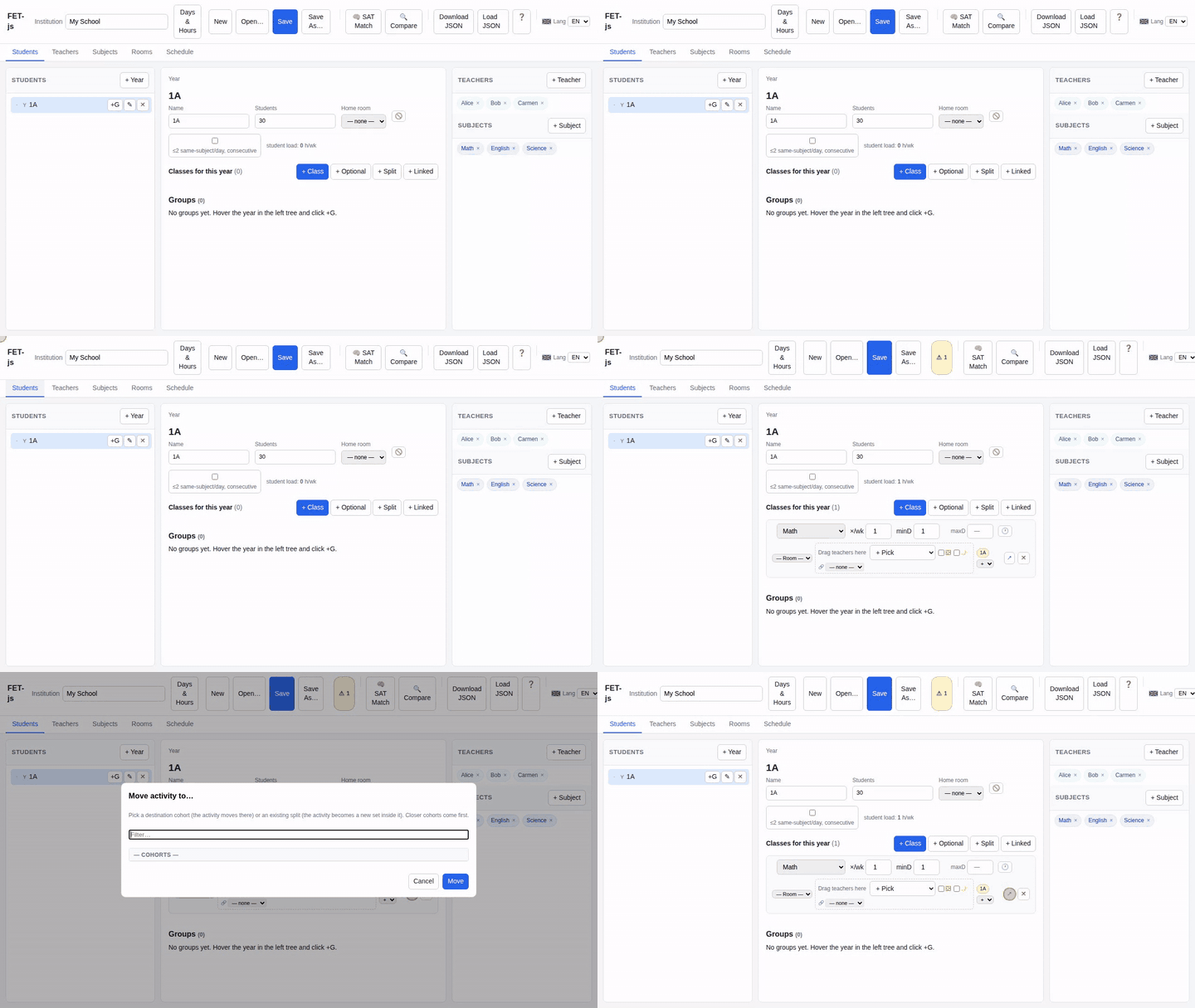
ACTIVITY ↗ Move activity

- Access
- Per activity row, the ↗ icon next to ✕. Also on every split-subject lane — same icon inside a set lets you move just that lane elsewhere.
- Good for
- Retargeting at two granularities. Whole activity: pick Cohorts (retargets
studentSetId) or Splits (folds the activity in as a new set; single/optional only). Single lane of a split: pick another set (the lane splices into that set, possibly across splits) or a cohort (extracted as a standalone single activity). All lists are closeness-sorted from the source cohort.
TEACHERS TAB Teachers list


Click a row to expand: qualified subjects, weight, compulsory hours, tutor class, extra work.

- Access
- Teachers tab. Click a row to expand the per-teacher editor.
- Good for
- Edit name, qualified subjects, weight, compulsory hours, tutor cohort (
tutorClass), and per-teacher scheduling preferences. The "Sched h/wk" column shows the teacher's current assigned hours so you can spot over/under-load at a glance.
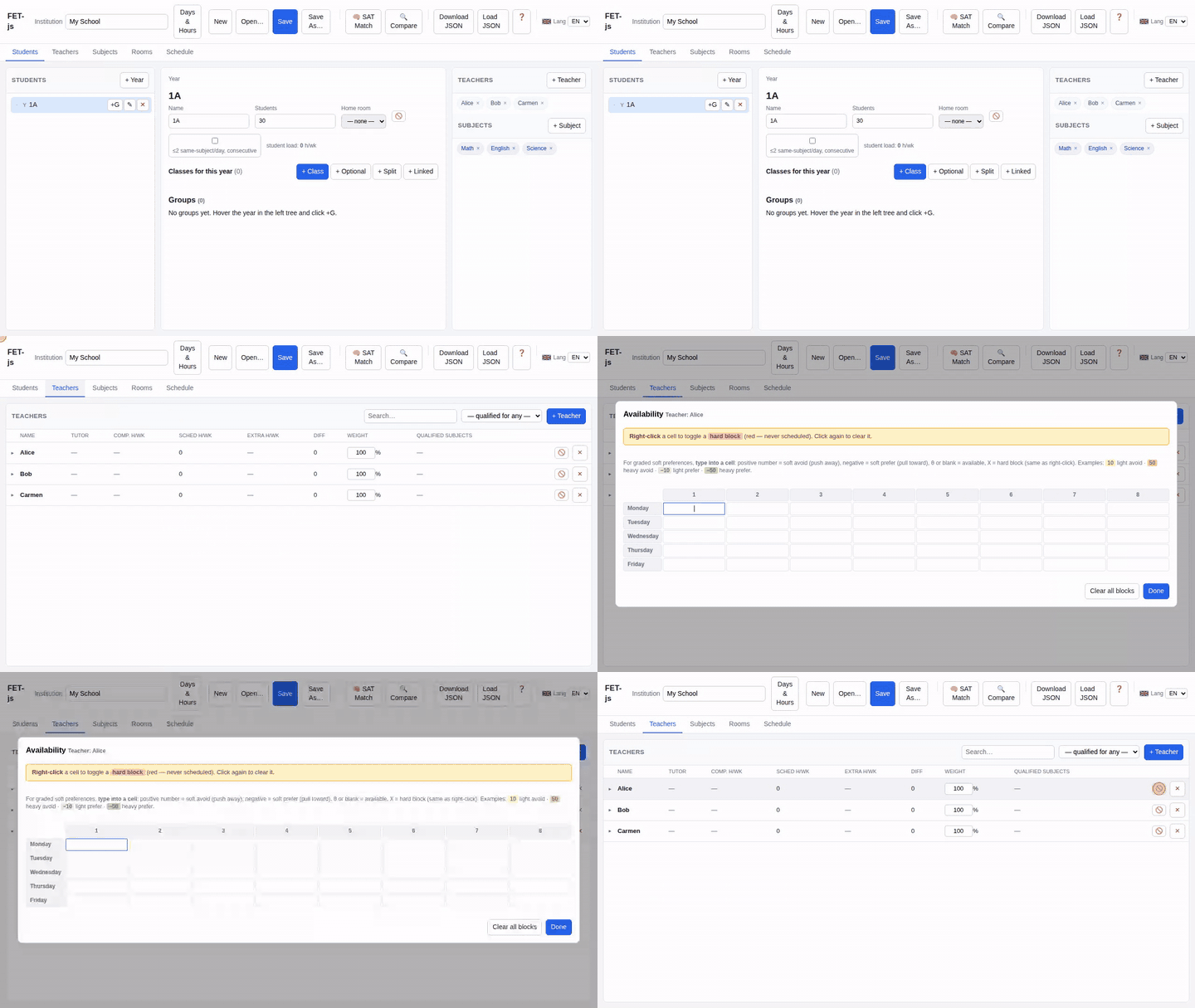
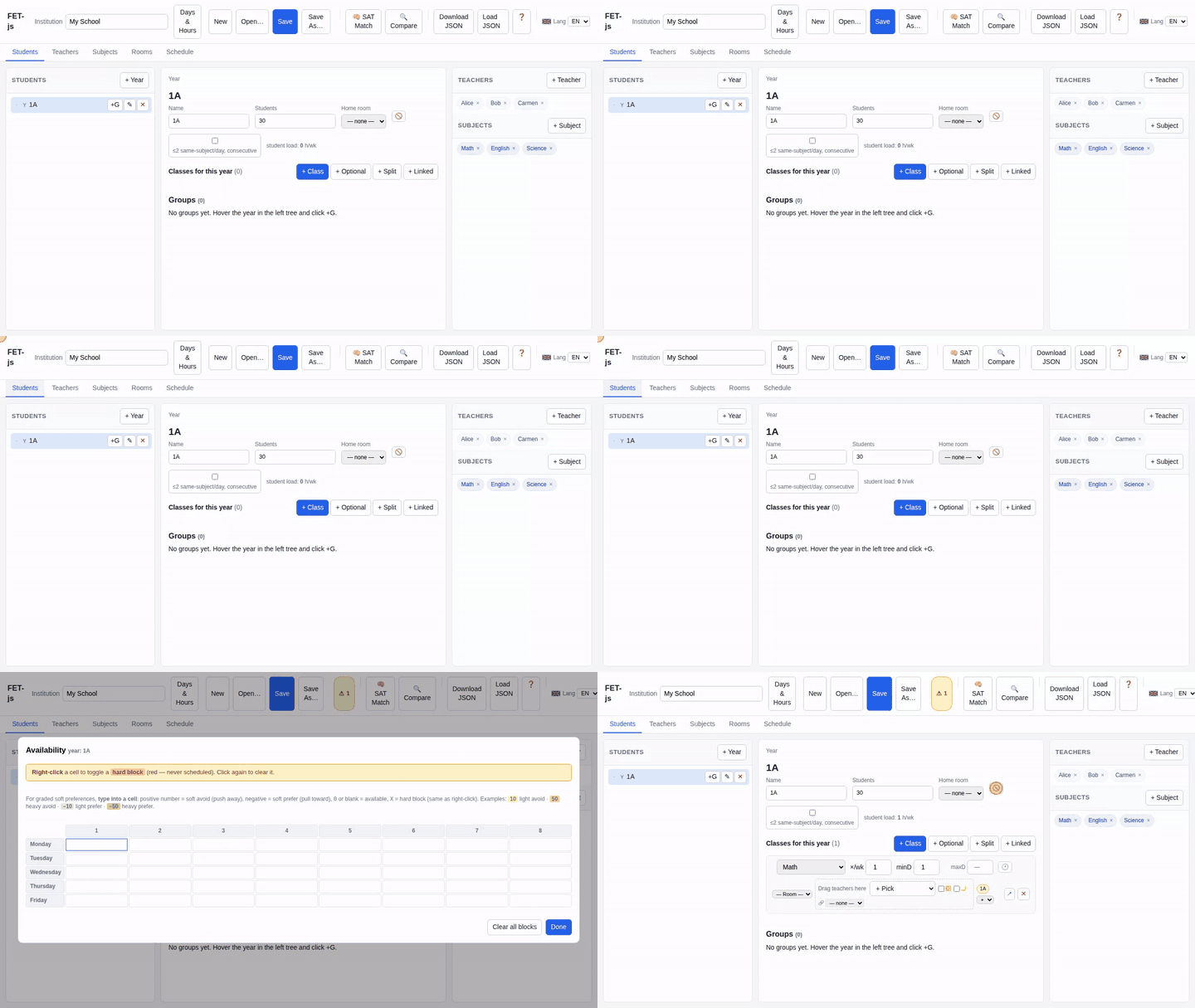
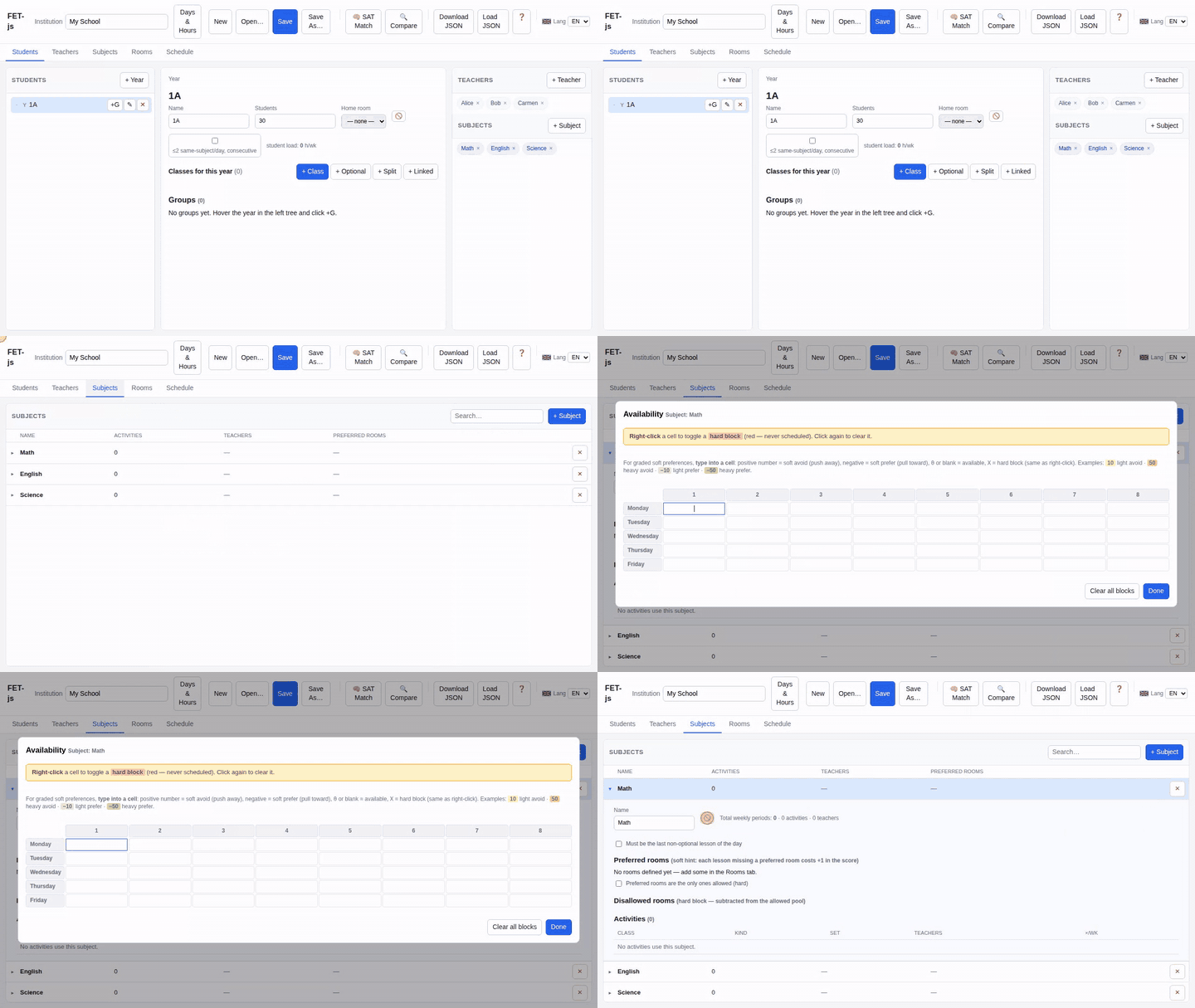
ANYWHERE Availability matrix (🚫)

- Access
- 🚫 button on the detail panel of any teacher, cohort (year/group/subgroup), subject, or room. Right-click any cell to toggle a hard block (red — never scheduled); click again to clear. For graded soft preferences type a number into the cell: positive = soft avoid, negative = soft prefer,
0/blank = available,X= hard block (same as right-click). - Good for
- Hard-block periods when the entity can't be scheduled — half-time staff, weekly meetings, lunch-block holds, building-closed slots, subject not offered on Monday morning, etc. The yellow banner at the top of the dialog highlights the right-click shortcut so colleagues find it without reading the small-print legend.
Teacher availability
Group / cohort availability
Subject availability
TEACHERS TAB Extra (non-teaching) work

- Access
- Teacher detail panel → Extra work rows.
- Good for
- Hours counted toward the teacher's load that aren't lessons: prep, mentoring (előkészítő, tehetséggondozó), admin. Affects the target-hour scoring without consuming a timetable slot.
SUBJECTS TAB Subjects & rooms

Expanded subject panel showing preferred rooms (green) and disallowed rooms (red).

- Access
- Subjects tab → click a subject. Two chip lists: Preferred rooms (green) and Disallowed rooms (red).
- Good for
- Preferred = soft score bonus when the lesson lands in one of those rooms. Disallowed = hard block.
SUBJECTS TAB "Preferred rooms are the only ones allowed (hard)"
- Access
- Subject detail panel, checkbox below the room chips.
- Good for
- OFF (default): preferred is a hint; any room is still allowed. ON: every room NOT in the preferred list becomes implicitly disallowed — the preferred list turns into a strict whitelist. Use ON for lab subjects (Kémia must run in the chem lab).
ACTIVITY 🏠 Home-room links
- Access
- Activity room picker → 🏠 options at the top of the dropdown. Picking one stores
homeRoomOfinstead of a literalroomId. - Good for
- The activity follows the cohort's home room. If the cohort gets a new home room later, every linked activity moves automatically — no chasing stale
roomIdvalues after the annual roll-forward.
ACTIVITY 🕐 Pin to specific slots

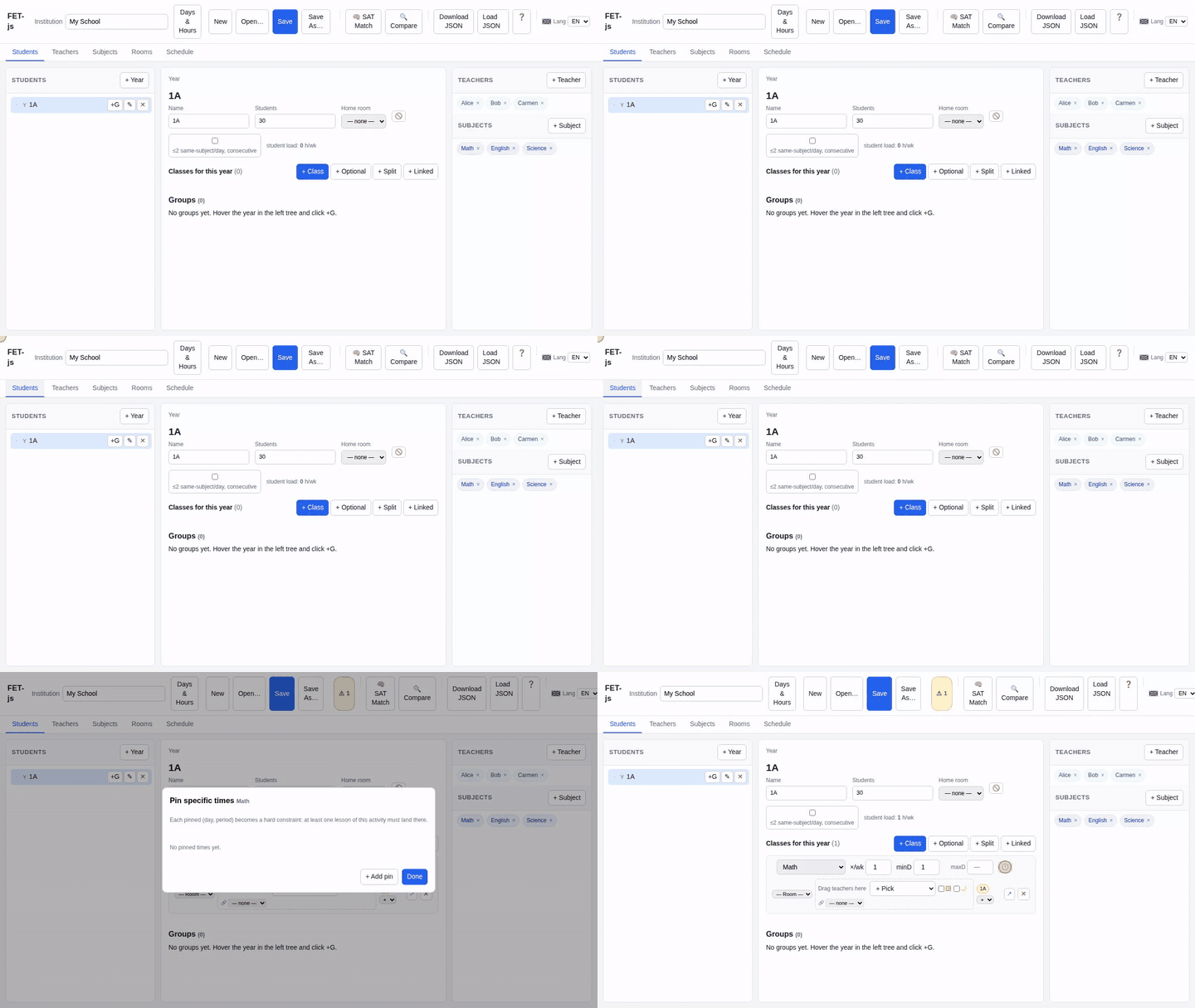
- Access
- 🕐 button on each activity / split-subject row. Add one or more (day, period) pins.
- Good for
- Fix an activity to a specific time. The solver treats pins as hard — refuses to place the lesson anywhere else. Use for staff meetings, school assembly, sport day, mandated late-afternoon electives.
ACTIVITY 🔗 Same teacher as another activity
- Access
- Teacher cell → 🔗 dropdown. Pick another activity from the closeness-sorted list.
- Good for
- Force two activities to share a teacher (e.g. tagozat in 9.a and 9.b must have the same instructor). The linked cell becomes read-only — the linked activity is the source of truth. Different from sameAs (which merges the lessons; sameTeacherAs keeps two lessons but with the same teacher).
ACTIVITY 🌙 Last class of day

- Access
- Activity row → 🌙 checkbox.
- Good for
- Forces this activity to land at or after every non-optional lesson for the same cohort that day. Pair with Optional so students who don't take the elective can leave early.
HEADER 🧠 SAT Match
- Access
- Header → 🧠 SAT Match. Confirm modal warns about overwrite.
- Good for
- CP-SAT optimal teacher-to-activity assignment. Honours qualifications, tutor preference, soft-keep, load balance. Hard-locked (🔒) assignments are NEVER overwritten. Use Settings → SAT Match for the "fill empty slots only" mode.
SCHEDULE TAB 🎲 Multistart

- Access
- Schedule tab → 🎲 Multistart. Tune iterations / threads / s/yr in ⚙ Settings.
- Good for
- Full timetable solve. Sequential iterations, each with a fresh seed. Tick 🧠 vary teachers in ⚙ Settings if you also want a fresh SAT teacher-match per iteration — it's off by default so the matcher only runs when you ask. Lowest-objective final wins. Each iteration appears in the Run dropdown as it completes — you can inspect partial results while later iterations are still running.
SCHEDULE TAB 🔄 Improve & 🧮 Rescore
- Access
- Schedule toolbar, with a run selected.
- Good for
- Improve re-runs the solver warm-hinted from the selected run — same parameters, often finds a marginally better placement. Rescore recomputes the objective under current ⚙ weights without re-solving (useful when you've tweaked weights and want to compare runs apples-to-apples).
SCHEDULE TAB Views, CSV / JSON / XLSX, Print
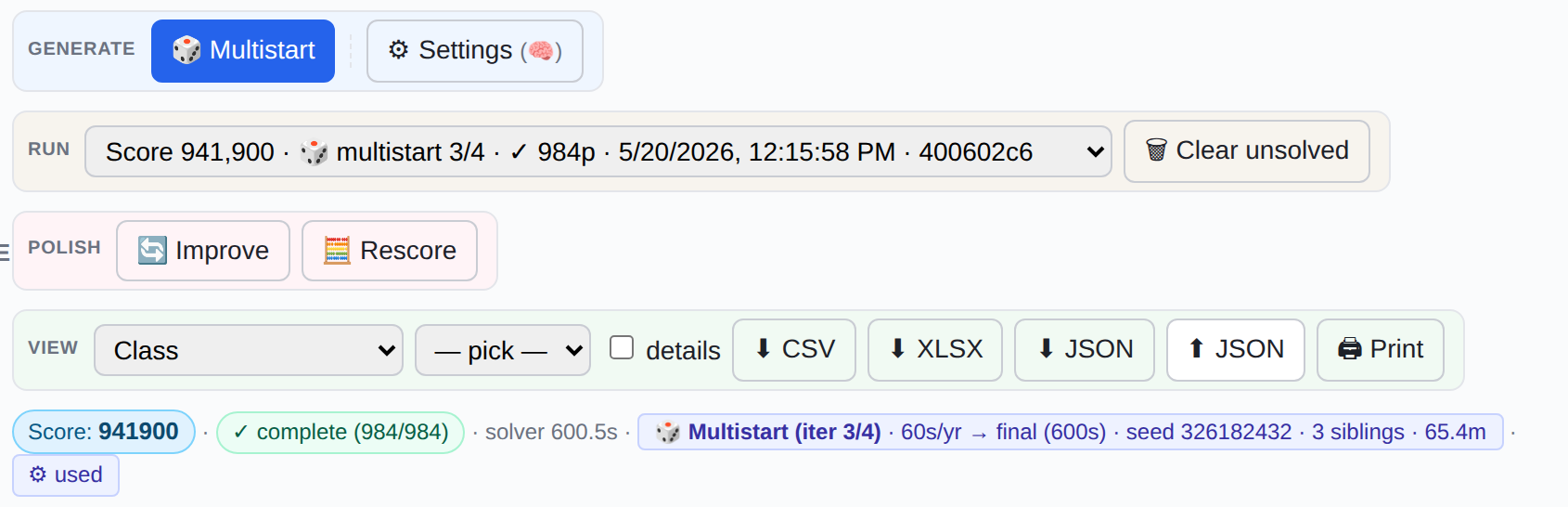
Schedule view for the cohort, with placements from the chosen run.

- Access
- Schedule view bar.
- Good for
- Six views: Class · Teacher · Room · All classes matrix · All teachers matrix · Teacher assignments tree. ⬇ CSV exports the current view. ⬇ JSON exports the raw schedule.json. ⬇ XLSX writes an 8-sheet workbook. 🖨 Print generates a multi-page PDF.
HEADER 🔍 Compare two files
- Access
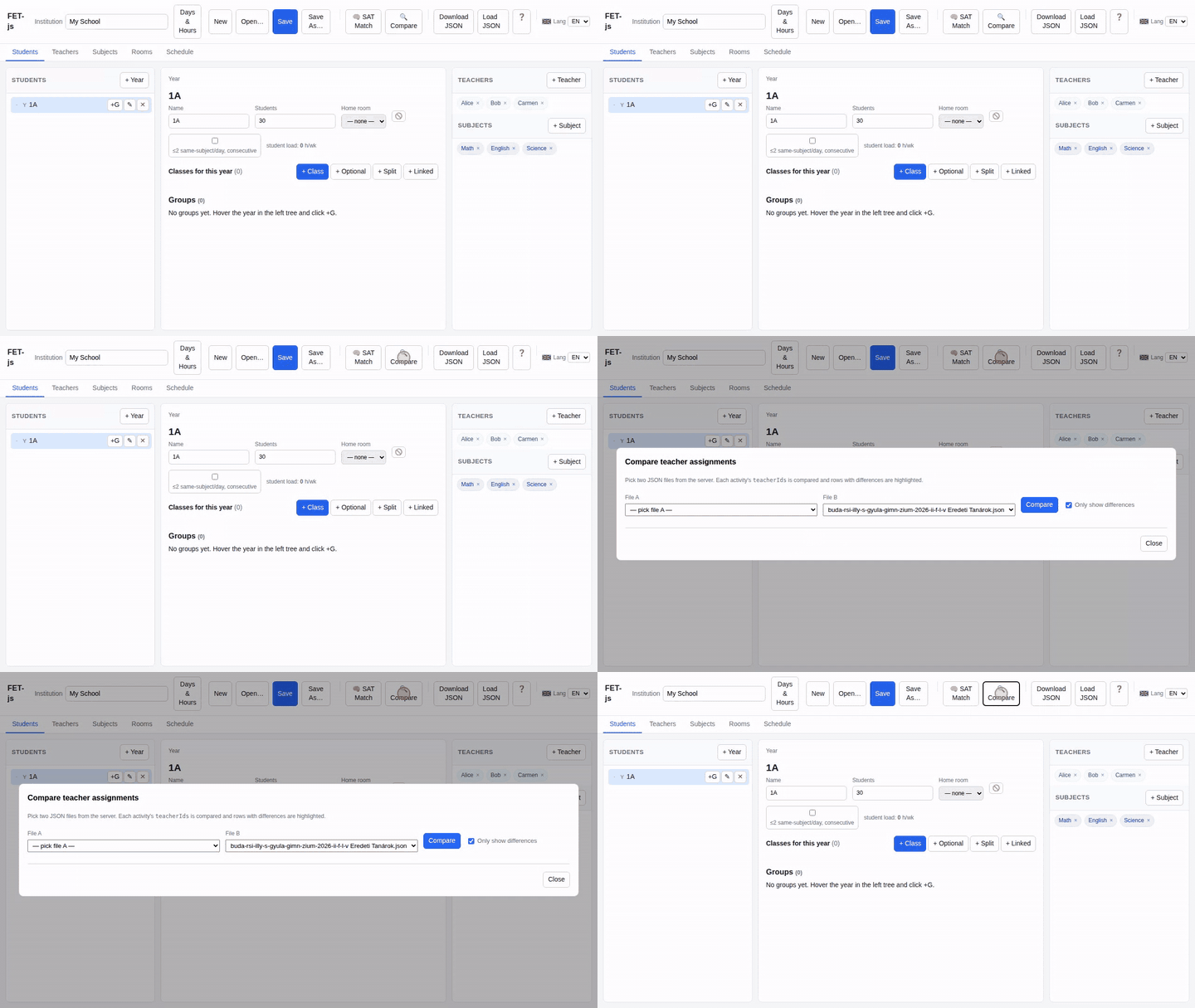
- Header → 🔍 Compare. Pick file A and B, click Compare.
- Good for
- Side-by-side diff of
teacherIdsandperWeekacross every activity. Rows highlighted when teachers or hours differ; "only in A" / "only in B" tags for activities present only in one file. Useful after the annual migration to verify the roll forward.
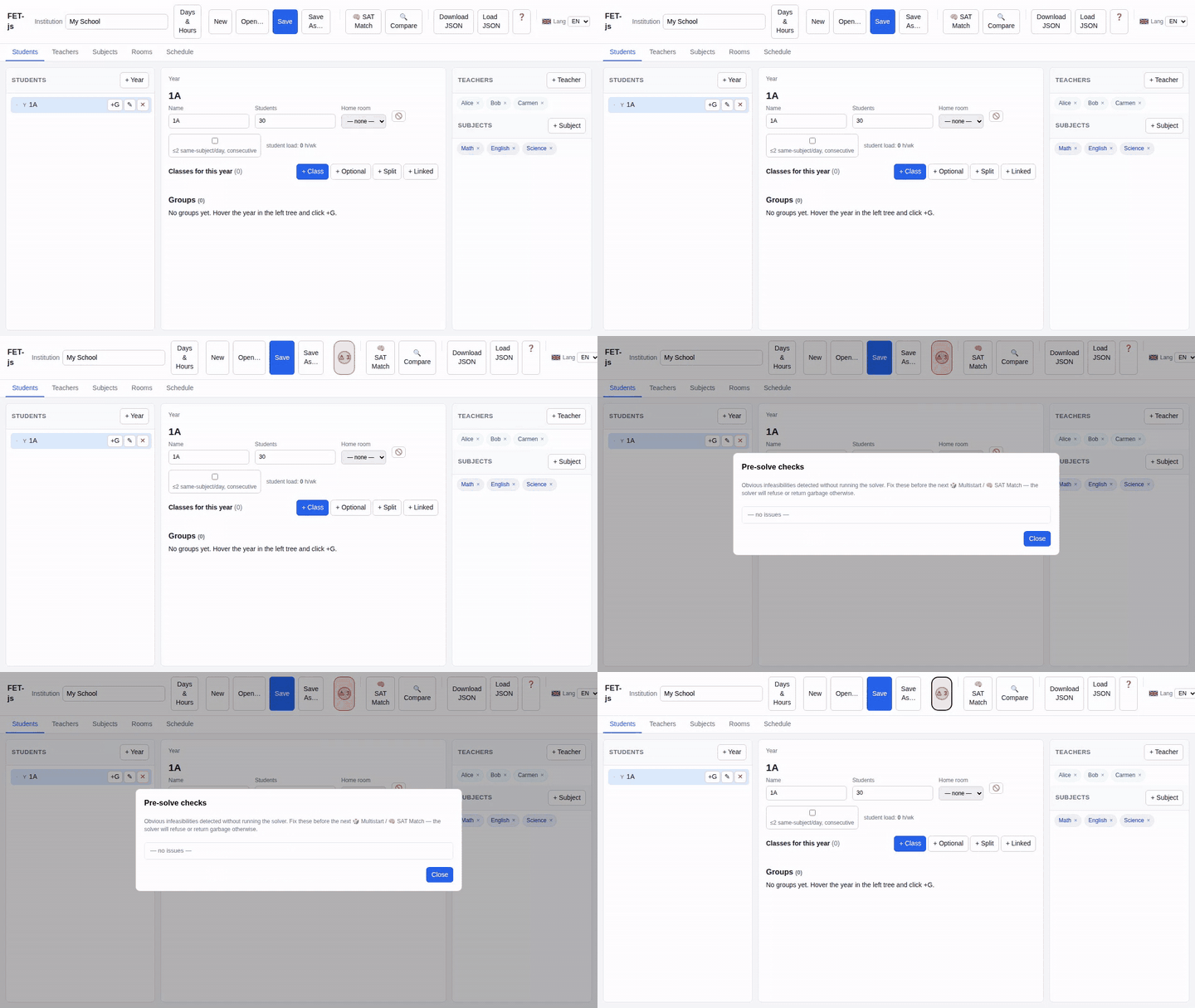
HEADER ⚠ Pre-solve warnings pill
- Access
- Header. Hidden when there's nothing to flag, yellow for soft issues, red for hard errors. Click to see the list.
- Good for
- Catches obvious infeasibilities before the solver wastes time: cohort overflow, subject with no rooms left after disallow, teacher unqualified for an assigned subject, no candidate teacher for a subject, duplicate pins. Refreshed live on every edit.
ACTIVITY 🔒 Locked teacher assignments
- Access
- Teacher cell → 🔒 checkbox. By default, picking a teacher auto-locks the cell.
- Good for
- Tells SAT Match to leave this slot alone. Manually-curated teacher choices stay; only unlocked slots are subject to re-assignment. Uncheck 🔒 to let the matcher reconsider that slot in the next run.
HEADER ↶ Undo · ↷ Redo · 📜 History
- Access
- Three buttons in the header between Save As… and the SAT-match cluster. Keyboard: Ctrl+Z undo, Ctrl+Shift+Z or Ctrl+Y redo. Shortcuts pass through to native field-level undo when typing inside an input.
- Good for
- Every edit you make this session is snapshotted automatically — renames, additions, deletions, activity edits, room/teacher attachments, etc. ↶ rewinds one step; ↷ replays. 📜 History opens a modal listing every snapshot with a timestamp and a one-line description ("+ teacher Almásy Anna", "rename activity", "− 1 subject", etc.) — click any row to jump directly to that moment in the session. Up to 100 snapshots are kept (oldest fall off). Snapshots don't survive a page refresh; they're per-session only.
HEADER 🌐 Language picker
- Access
- Header → 🌐 dropdown (EN · HU · DE · FR).
- Good for
- Switches every label across the SPA — re-renders on the fly. Print output and XLSX exports respect the current language.